Navigate to the left sidebar and select "Template Management > Email Templates".
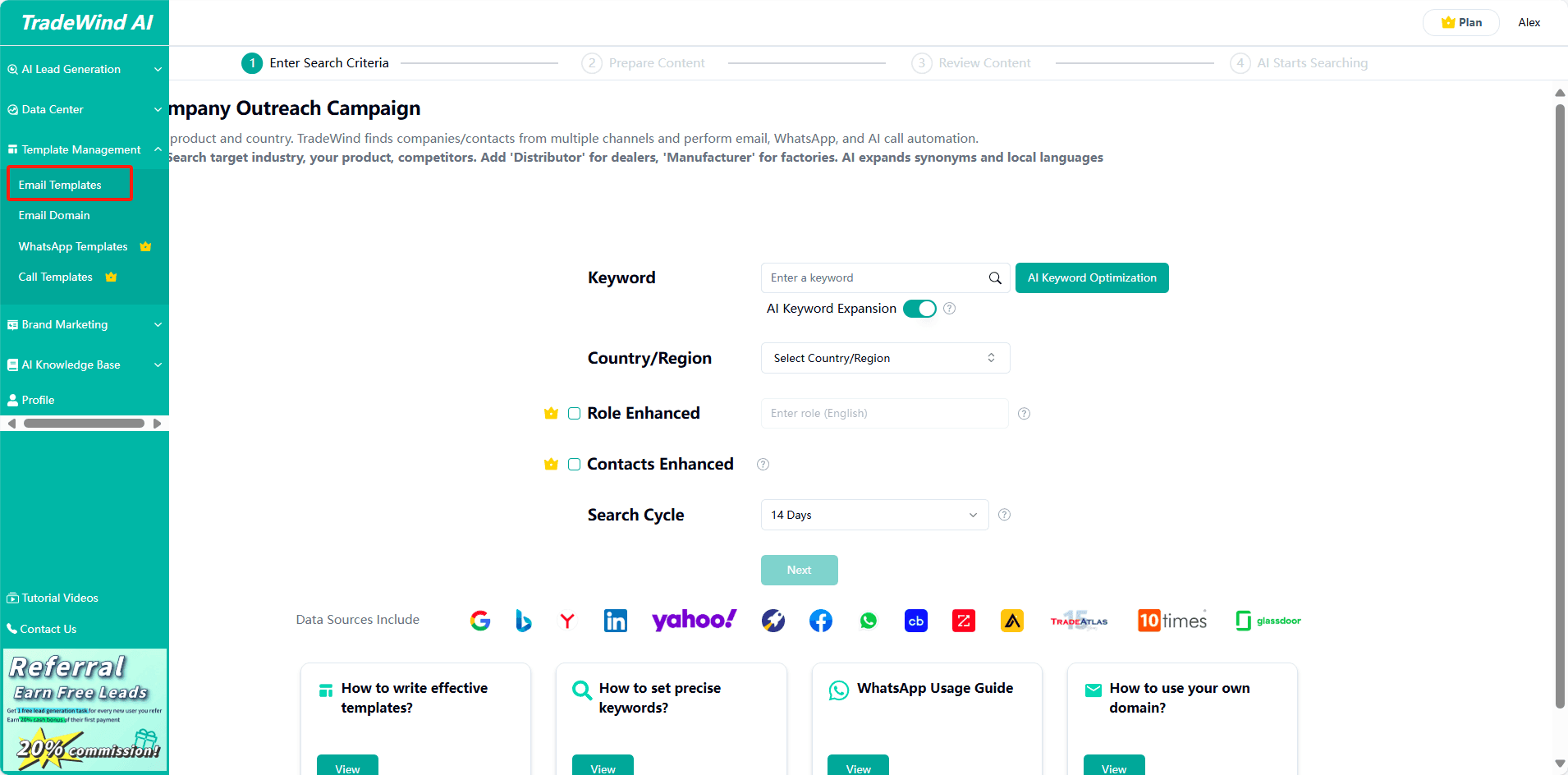
Using Default Templates
Pre-designed templates are available for immediate use.
Creating Custom Templates
Initiate Template Creation
Click "Create Template" in the top-right corner.

Template Naming
Field 1: Template Name
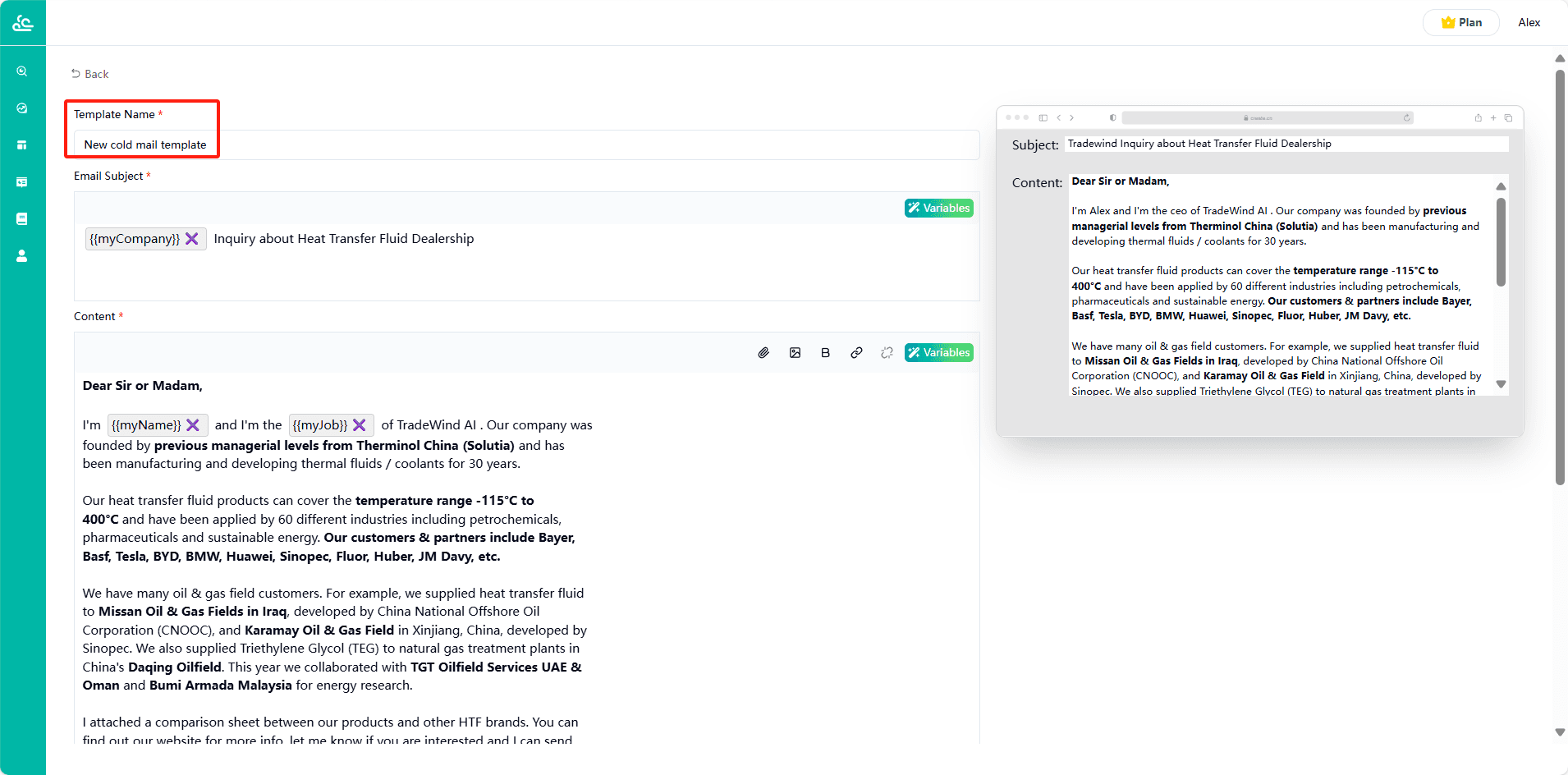
Assign a clear, descriptive name (e.g., "CNC Machinery Intro – B2B").
Note: Names are for internal organization only and don’t affect email content.
Email Subject Line
Field 2: Email Subject
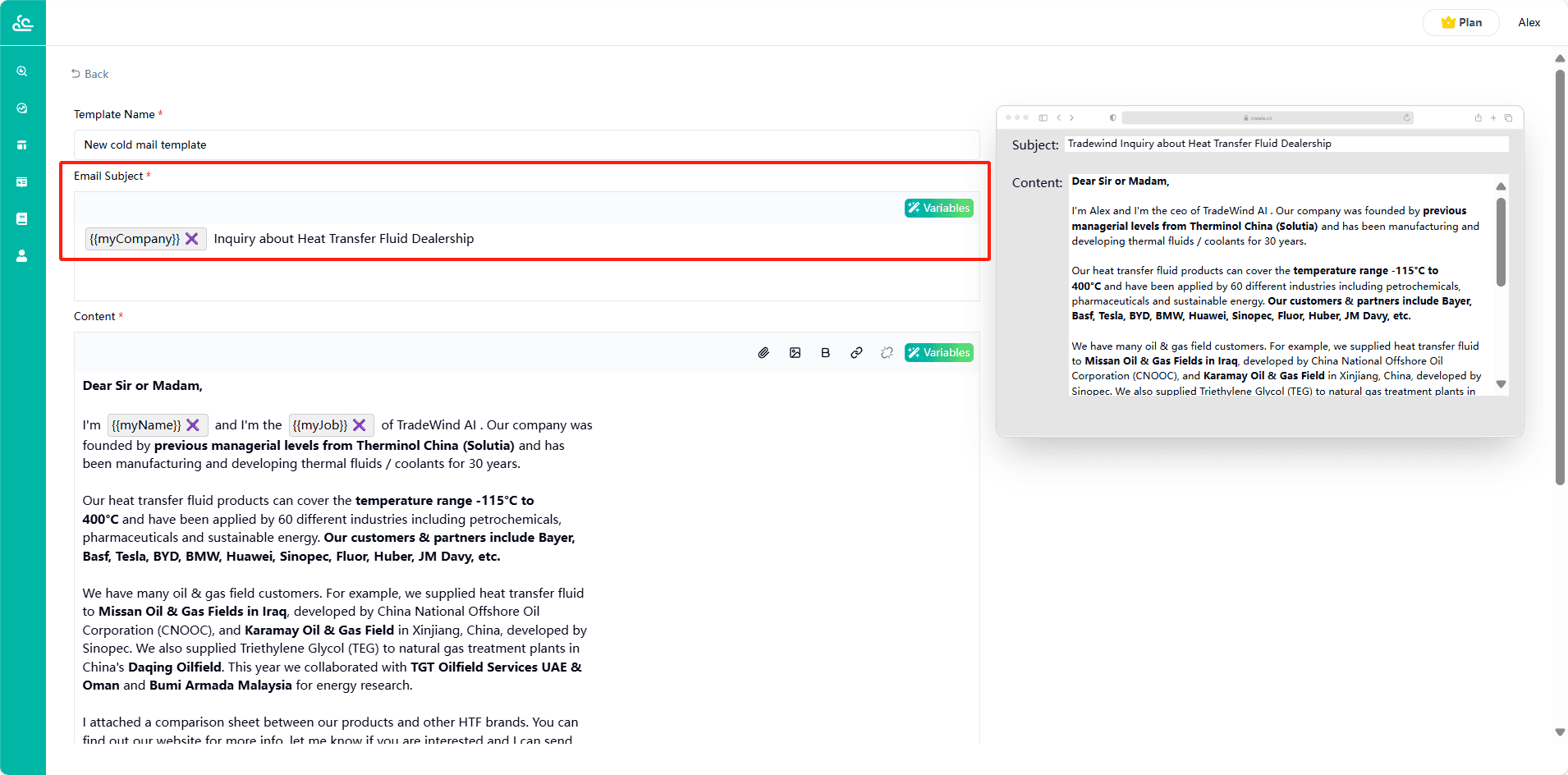
Craft a concise subject line for recipient visibility.
Personalization Tip: Use the "variable" button to insert variables. Supported variables include:
Your pre-filled company/product details.
Prospect’s name/company (auto-pulled from searches).
Email Body Content
Field 3: Content
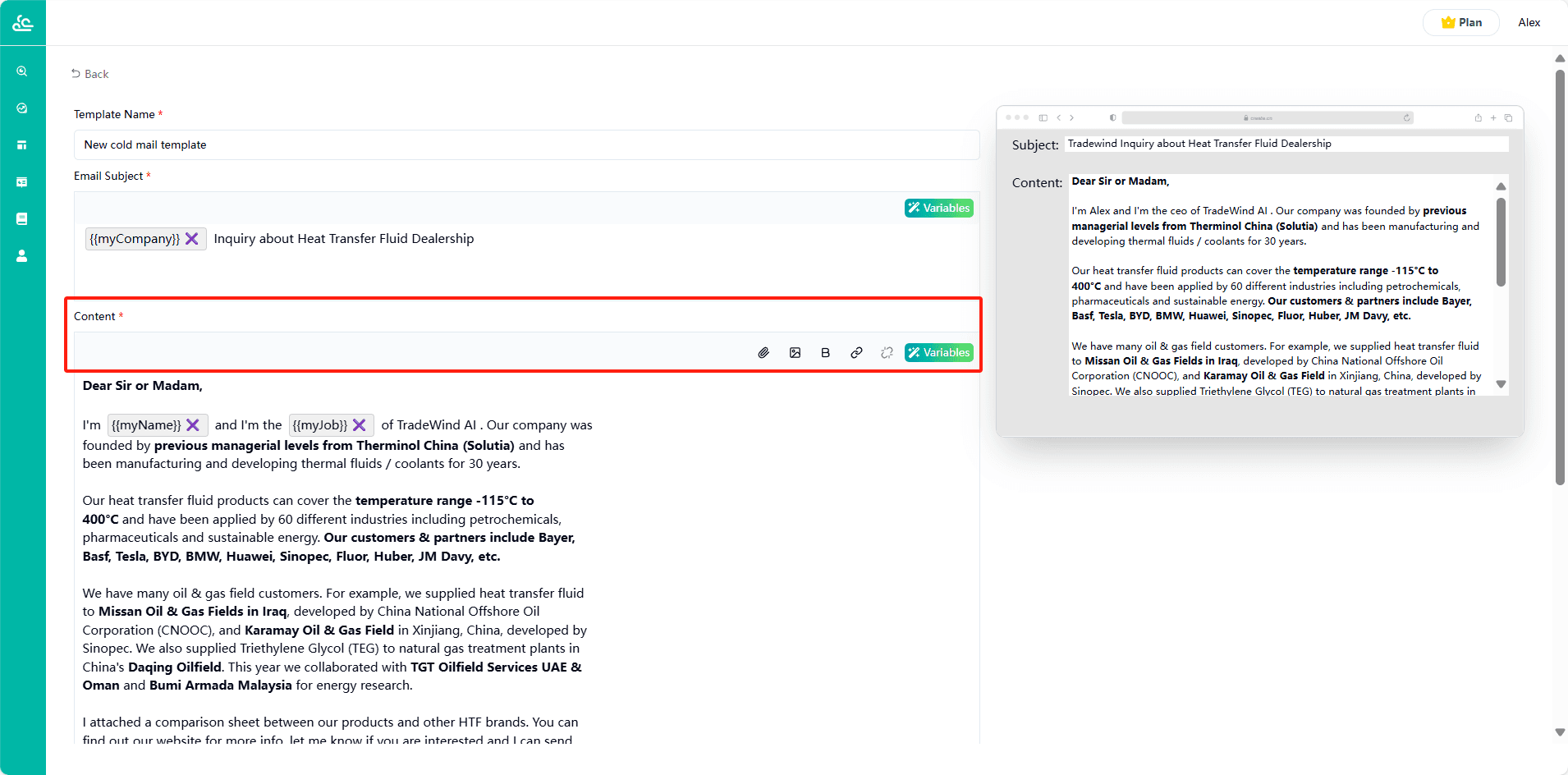
Compose your message, leveraging variables for customization.
Enhancement Tools (located above the editor):
Attach Files: Add PDFs, specs, or catalogs.
Insert Images: Include product visuals or infographics.
Embed Links: Direct recipients to your website/landing pages. Use "Unlink" to remove errors.
Real-Time Preview
The right panel displays a live preview of your email’s subject and body, ensuring professionalism and accuracy.
Finalize & Submit
Save Draft: Temporarily store unfinished templates.
Submit for Review: Required before sending. Approved templates ensure compliance and effectiveness.
Pro Tip: Create multiple templates tailored to different customer segments (e.g., distributors vs. end-users) to boost open/reply rates.