Why Outlook Attachment Limits Are Still a Problem in 2026 (And Why You Should Care)
This is the moment that keeps happening.
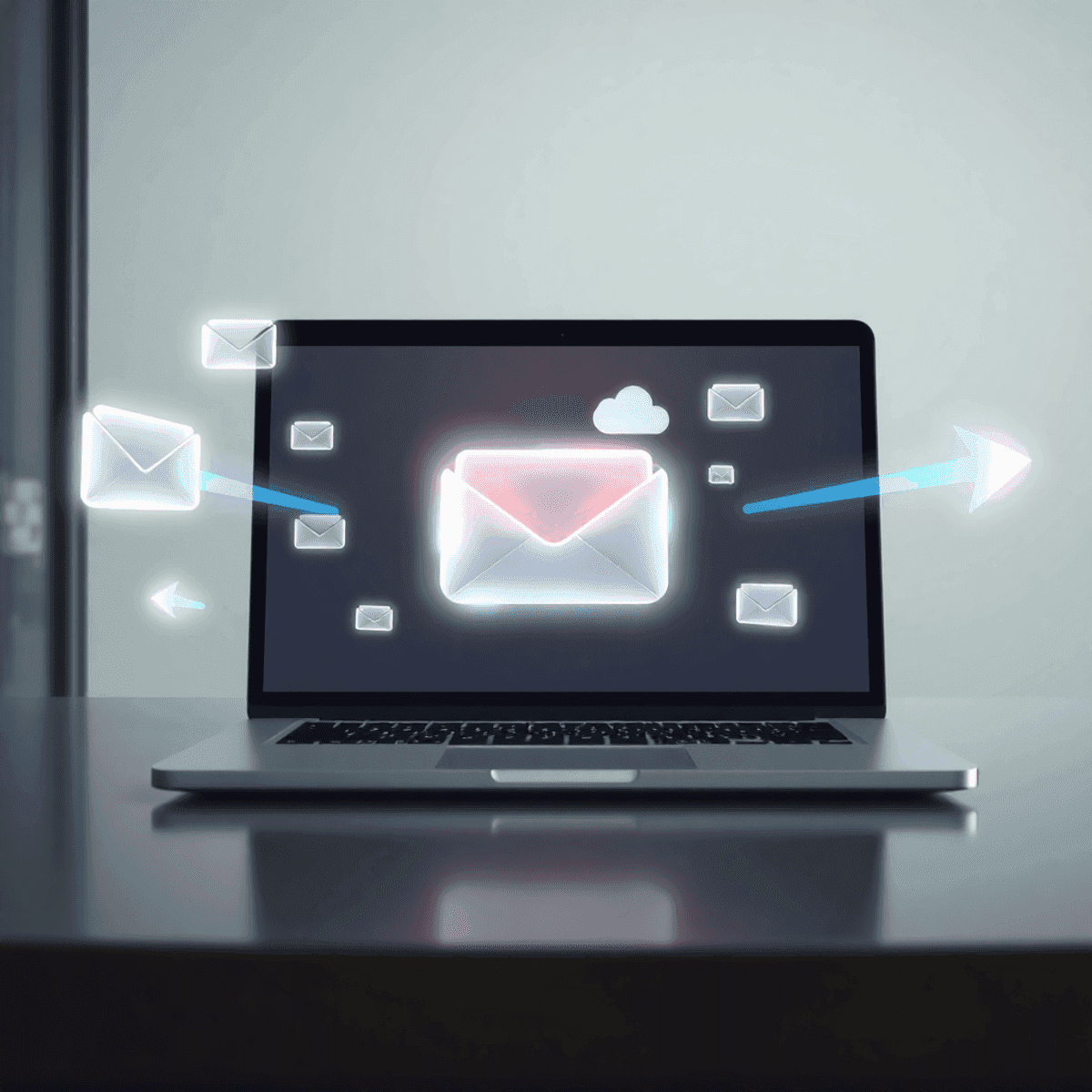
You finally finish the deck. Or the proposal. Or that “quick” pricing PDF that somehow turned into a 34 page monster with screenshots. You attach it in Outlook, hit Send, and either it blocks you right away… or it looks like it sent, but the recipient never sees it.
And then you do the awkward follow up.
“Hey just checking you got my email.” They say no. You resend. They say still no. Now you’re wondering if you look incompetent, or if Outlook is just messing with you, or if their IT team hates you personally.
The annoying part is, the real problem is not just the size cap.
Attachments can:
Slow down opens on mobile, or cause the message to load weird
Get stripped out by gateways, even when the email “delivers”
If you are in sales, account management, partnerships, or email marketing, you do not just need to “send the file”. You need the email to land, and the file to actually get viewed. Reliably. Every time.
So this guide is going to do three things:
Explain the real Outlook limits, including the encoded size trap that makes “20MB” not really 20MB.
Give you the 3 best workarounds, ranked by reliability and deliverability.
Give you the cold email warning most people learn the hard way. Attachments are often a deliverability liability, even when they are under the limit.
The Technical Reality: Outlook Attachment Size Limits (20MB vs 25MB)
Here’s the number most people quote:
Around 20MB for many Outlook.com (consumer) accounts.
Around 25MB is common in Microsoft 365 / Exchange org setups.
But in practice, you will see variation. A lot of it.
Because the limit is not really “Outlook the app”. The real gatekeeper is usually your mail server policy.
Outlook desktop vs Outlook on the web
You can attach something in the Outlook desktop app and it might look fine. Then you try the same in Outlook on the web and it complains sooner. Or vice versa.
That difference is confusing, but the underlying reality is simpler: your Exchange / Microsoft 365 tenant settings and transport rules are what decide what actually goes out.
Other bottlenecks that can block you even if Outlook allows it
Even if your Outlook setup allows 25MB, you still have at least three other possible limits:
Recipient server limits (they might cap inbound at 10MB, 15MB, 20MB, etc.)
Security gateways/scanners (Proofpoint, Mimecast, Defender policies, and so on)
Forwarding systems and CRMs that relay email (some of them choke on large messages or strip attachments)
So if you “can’t send” or you get random bounces, it might not be your file or your laptop. It might be your org’s Exchange transport rules, or the recipient’s inbound rules.
That’s why people feel like this problem is unpredictable. Because it is. Unless you stop relying on attachments.
Managing Attachment Issues
One way to alleviate these issues is by using email whitelisting. This process ensures that your emails are not blocked by recipient servers or security gateways. For instance, whitelisting an email in Gmail or Outlook can help ensure that your important messages get through without any hitches.
The “Encoded Size” Trap: Why a 20MB File Often Fails Anyway
This is where Outlook attachment limits feel like they are lying.
When you attach a file to an email, it is not shipped as raw bytes the way it exists on your drive. It gets encoded for email transport. The common encoding method is Base64.
And Base64 typically inflates the payload by about 33%.
So:
A file that is 18MB on your computer can become roughly 24MB once encoded.
A file that is 20MB can jump to around 26 to 27MB.
Which means a “20MB limit” will reject files that appear to be under the limit. And you will swear Outlook is broken. But it is just math.
Extra overhead adds up faster than you think
It’s not only the file.
Email size also includes:
Your email body content
Long signatures
Multiple attachments
Tracking pixels or extra metadata added by systems
So even if your attachment is right on the edge, the rest of the message can push it over.
A practical rule that saves pain
If your environment has a 20MB cap, aim to keep attachments at 12 to 15MB max.
If your environment has a 25MB cap, aim for 18MB or less.
It feels conservative. It is. And that’s the point.
What Happens When You Exceed the Limit (And Why It’s More Than an Error Message)
Sometimes Outlook will block the send immediately. That is the “nice” failure mode.
Other times, it gets messier:
Send failure with an NDR/bounce (non delivery report)
Delayed delivery while gateways try and fail to process it
Recipient quarantine where the message technically arrives but nobody sees it
Attachment stripped so the recipient gets your email, but not the file, which is a special kind of chaos
And then there’s the longer term damage.
Repeated bounces and large payload sends can contribute to a pattern that mailbox providers do not love. If you are doing outreach at scale, this can quietly degrade your sender reputation over time.
Operationally, this stuff slows deals down.
Proposals do not arrive. Sales cycles stall. Follow ups get weird because you do not know what they saw. Your tracking becomes unreliable because you cannot separate “not interested” from “never received”.
At some point, the right move is to stop fighting the attachment ceiling and change the delivery method.
The 3 Best Workarounds (Ranked by Reliability + Deliverability)
Here’s the big idea: don’t just bypass the limit, optimize delivery for engagement and deliverability.
Different scenarios need different approaches:
Internal teams: you can be more native and locked down.
Warm external contacts: prioritize low friction access.
Cold outreach: prioritize deliverability and replies, not “sending stuff”.
Workaround #1 (Best Native Option): Use OneDrive / SharePoint Links in Outlook
This is the cleanest “Microsoft approved” workaround, and it is usually the most reliable for normal business sending.
When you attach a large file in Outlook, it can offer to upload it to OneDrive or SharePoint and insert a sharing link instead of attaching the full file.
So the email stays small. The file lives in the cloud.
The basic flow
Upload the file to OneDrive or SharePoint
In Outlook, insert it as a sharing link
Set permissions: view or edit
Send
That’s it. And now you are not playing roulette with encoded size.
Why this is better than attachments (even when size is not the issue)
Version control: update the same file without resending it. No outdated decks floating around.
Security and control: you can revoke access later, change permissions, and in many orgs you get audit trails.
Deliverability upside: smaller message size, fewer blocks, easier scanning for recipient systems.
This is what I’d standardize for proposals if you live in Microsoft 365 all day.
Workaround #2: Compress or Split the File (ZIP, PDF optimization, or chunking)
Sometimes you truly need to deliver a file as a file. Or the recipient insists. Or their environment blocks external links (yes, it happens).
This is where compression and splitting helps. It is not glamorous, but it works.
When compression is actually useful
Compression works best when your file is bloated with:
High resolution images in PDFs
PowerPoint decks with uncompressed media
A folder of assets (multiple files)
Things to try:
Export the deck with smaller media
Use “Save as Reduced Size” options in PowerPoint (where available)
Optimize PDFs using Acrobat or other PDF optimizers like those mentioned in this guide on creating PDFs using PDFMaker
ZIP a folder into a single file
ZIP reality check (and a warning)
Some files do not compress much. A lot of modern formats are already compressed.
Also, encrypted ZIPs are a common malware technique, so some recipient systems will flag them or quarantine them. If you do password protect, be ready for friction. And do not send the password in the same email if you can avoid it.
Splitting is underrated (and looks more professional than you think)
If a proposal PDF is too big, split it:
Proposal Part 1 (core)
Appendix (details, case studies, screenshots)
Or keep the appendix as a link
This lets you keep each piece well under the safe threshold and makes it easier for the recipient to skim.
A small tip: don’t write “Here are 4 attachments.” It feels spammy. Instead, frame it like:
“Main proposal attached, appendix via link.”
Or “Short version attached, full version available if you want it.”
Especially for sales outreach, multiple attachments can look suspicious. Use sparingly.
Workaround #3 (The Pro Way): Hosted Links Instead of Attachments (Best for Sales + Tracking)
This is the approach that scales the best, and it tends to create the least deliverability drama.
Instead of attaching anything, you host the asset and send a clean URL.
This could be:
A drive link (OneDrive, Google Drive)
A data room
A docs site
A lightweight landing page with “view” and “download”
A customer portal
Why this wins
No size cap
Faster sending
Easier to view on mobile
Fewer gateway blocks
Way easier to reuse in sequences and follow ups
Best practice: send a view online link, and optionally a download link. Keep the CTA simple.
Branding tip that actually matters
Use a branded domain or subdomain for links when possible.
It looks more trustworthy, and it ties into DNS hygiene and alignment signals that matter when you are doing outbound at volume. A random looking link can get treated like a random looking email. Not always, but often enough to care.
Security tip for sensitive docs
If the content is sensitive:
view only permissions
watermarking
NDA workflow before access (if needed)
A link can be more secure than an attachment because you can revoke it. You cannot revoke a PDF once it is forwarded.
The Cold Email Warning: Why Large Attachments Hurt Deliverability (Read This Before You Send)
In cold outreach, attachments are not just inconvenient. They are risky.
Even when the file is small enough to send, attachments can trigger:
Malware heuristics
Quarantines by recipient IT
Higher spam filtering sensitivity
Weird “stripped attachment” behavior
And then you get the silent failure where you think you sent something meaningful, but you actually just trained spam filters to distrust you.
There is also reputation math here.
If you send cold emails with attachments and you get:
higher bounce rates
lower engagement
more spam complaints or quarantines
Then future emails from the same domain can start landing worse. Across campaigns. Even the good ones.
So the practical guidance is simple:
In cold email, avoid attachments entirely.
Send links with context and a clear CTA. Keep emails lightweight, plain text leaning, minimal formatting, no risky file types.
A Deliverability-First Alternative for Outreach: Send Links, Then Automate Follow-Up the Right Way
If you want a pattern that works, it usually looks like this:
Email 1: short context, value, one link
Follow up: nudge, offer an alternative format, ask a simple question
Final: break up email or routing question (“Who owns this?”)
This lets you keep the payload small while still giving the prospect a path to the asset.
Personalization helps too, and it does not require heavy HTML. Simple fields and relevant lines are enough:
“Noticed you’re hiring X, figured this was relevant.”
“Saw you launched Y last month, quick idea.”
The other benefit: linked assets support multithreading. You can send the same proposal link across sequences and replies without reattaching files and without creating multiple versions.
And if you truly must provide a file in outbound, do it after engagement:
“Want the PDF version?”
That question does two things. It protects deliverability, and it qualifies intent.
Where Cold Email Tools Fit In (Smartlead Example): Scaling Outreach Without Deliverability Damage
Tools do not magically make attachments safe. They do not change Outlook limits. But they can help you avoid common deliverability mistakes while you run a link first motion.
Smartlead is one example in this category. It is a cold email outreach platform built for scaling, with things like unlimited mailboxes, automated warmup, and a centralized unibox that keeps replies in one place so you are not juggling ten inboxes and losing context.
If you are doing real outbound volume, the helpful pieces tend to be:
Cold email automation so you can run link based sequences without manual follow ups
Unlimited warmups to protect and maintain sending reputation
Unibox to manage replies and handoffs without chaos
Lead generation workflows and integrations so your lists, events, and CRM stay in sync
And then there’s the unsexy part that matters a lot. DNS and authentication hygiene.
Smartlead includes utilities like:
SPF Checker
DMARC Checker
CNAME setup guidance for tracking domains
Email verifier, blacklist checks, bounce rate calculator
These do not directly solve “my file is too big”, but they support the bigger goal. Inbox placement and trust.
A common setup that makes sense in the real world:
Warm contacts and customers: send proposal links from Outlook (OneDrive/SharePoint works great here).
Cold sequences: run them from Smartlead with hosted links (not attachments), route replies into unibox, push updates into HubSpot, Salesforce, or Pipedrive via native integrations or automation tools like Zapier, Make, or n8n.
Decision Guide: Which Option to Use (Based on Scenario)
Use this like a quick mental shortcut.
Internal, same org: OneDrive/SharePoint links with tight permissions. Keep it inside Microsoft 365.
Warm external contacts (customers, partners): OneDrive link or hosted link. Optimize for low friction access.
Cold outreach: link only. Keep the email small. Avoid attachments and heavy HTML.
Highly sensitive docs: controlled data room or view only link with expiry, watermarking, maybe NDA workflow.
Recipient insists on attachments: compress/split, and ideally only after they have replied so you are not tanking deliverability for no reason.
How to Write the Email So the File Actually Gets Viewed (Not Just Delivered)
A lot of people fix the technical delivery problem and still lose because the email is messy.
The goal is not “sent”. The goal is “opened and clicked”.
Subject lines that set expectations without sounding spammy
Good:
“Proposal + timeline (link)”
“Deck for review (view link)”
“Notes and next steps”
Avoid:
“ATTACHMENT INSIDE”
“URGENT”
“DOWNLOAD NOW”
Anything that looks like a phishing template
A simple body structure that works
1 to 2 lines of context, then one clear CTA, then a short summary.
Example structure:
Context: why you’re sending it
CTA: one link
Bullets: what they’ll see
Backup option: “If your firewall blocks it, tell me what method you prefer.”
Also, keep signatures light. Huge logos and inline images add weight and sometimes trigger filtering.
If permissions matter, say it plainly:
“View only link, no login required.” Or if they do need to log in, at least warn them so they do not assume it is broken.
Wrap-Up: Bypass the Limit, But Optimize for Deliverability and Engagement
The technical truth is boring but important: Outlook attachment limits are usually 20MB or 25MB, and Base64 encoding inflates file size by roughly 33%, so attachments are less reliable than they look.
The best solutions, in order:
OneDrive/SharePoint links in Outlook (best native option)
Compress or split files (backup when attachments are required)
Hosted links instead of attachments (best for sales, tracking, and scale)
And the cold email rule is non negotiable if you care about deliverability:
Avoid attachments. Prioritize inbox placement and replies.
Standardize a link first process for decks and proposals, and if you are scaling outbound, use deliverability focused tooling and clean DNS authentication so your emails land where they should.
FAQ
What is the Outlook attachment size limit in 2026?
Common defaults are around 20MB for many Outlook.com accounts and around 25MB for many Microsoft 365 / Exchange orgs, but the real limit depends on server and admin policies.
Why does Outlook reject my 18MB or 20MB file?
Because attachments are encoded (often Base64), which inflates size by about 33%. A “20MB” file can become 26 to 27MB in transit.
Is the limit different for Outlook desktop vs Outlook on the web?
Sometimes the experience differs, but the real gatekeeper is typically your Exchange/Microsoft 365 transport settings plus recipient side limits.
What is the safest attachment size to avoid bounces?
If your cap is 20MB, aim for 12 to 15MB. If your cap is 25MB, aim for 18MB or less, especially if your email has a long signature or inline images.
What’s the best way to send a large proposal from Outlook?
Use OneDrive or SharePoint links inserted through Outlook, with the right permissions (view or edit). It is usually the most reliable and keeps the email lightweight.
Are ZIP files a good workaround?
Sometimes. They can help when files are bloated, but ZIPs do not always compress much, and encrypted ZIPs can trigger security filters.
Should I ever send attachments in cold email?
It’s a bad idea most of the time. Attachments increase the chances of filtering, quarantine, low engagement, and reputation damage. Use a link first approach and offer the PDF “on request” after they reply.
If a recipient blocks links, what should I do?
Ask what method they prefer (their portal, different file type, smaller split PDFs). If they insist on attachments, send compressed or split files after engagement, not in the first cold email.
What is the Outlook attachment size limit in 2026 and why does it still cause problems?
Outlook typically enforces an attachment size limit of around 20MB for consumer accounts and up to 25MB for Microsoft 365 or Exchange organizational policies. Despite these limits, users often face issues because email attachments can be larger than expected due to Base64 encoding, which inflates file size by about 33%. Additionally, attachments can hurt email deliverability by triggering security filters or causing emails to bounce, making it a persistent problem for B2B sales, account managers, and email marketers.
Why does a 20MB file often fail to send through Outlook even if it's under the stated limit?
The 'encoded size' trap explains this issue: when attachments are sent via email, they are Base64 encoded, increasing their size by approximately 33%. For example, a 20MB PDF can become roughly 27MB once encoded. Combined with email body content and other attachments, this often exceeds Outlook's actual message size limits, leading to rejection or bounce. To avoid this, it's best to keep attachments well under the nominal limit—ideally between 12 and 15MB.
What happens if I exceed Outlook's attachment size limit?
Exceeding Outlook's attachment size limit can result in various negative outcomes such as send failures, non-delivery reports (NDRs), message bounces, delayed delivery, recipient quarantine of emails, or even automatic stripping of attachments. Repeatedly sending oversized emails can also harm your sender reputation over time, impacting future email deliverability. For sales teams and marketers, this means slower sales cycles and messy follow-ups when proposals or important files don't reach recipients.
What are the best workarounds to send large files through Outlook without hitting attachment limits?
The three best workarounds ranked by reliability and deliverability are: (1) Use OneDrive or SharePoint links within Outlook emails—upload your file to the cloud and insert a sharing link with appropriate permissions; (2) Compress or optimize files using ZIP compression or PDF optimization techniques to reduce file size; (3) Split large documents into smaller parts or appendices that fit within attachment limits. These methods help ensure smoother delivery and better engagement while avoiding spam filters.
How does using OneDrive or SharePoint links improve Outlook email deliverability?
Using OneDrive or SharePoint links replaces large attachments with secure sharing links in your Outlook emails. This reduces overall email size, minimizing content-based blocks and easing scanning by recipient systems. It also offers version control benefits—allowing you to update files without resending—and enhanced security through link access controls, revocation options, and audit trails. For external recipients, setting permissions like 'Anyone with the link' balances ease of access with security considerations.
Are there any cautions when compressing or splitting files for sending via Outlook?
Yes. While compressing PDFs or zipping files can reduce size effectively—especially for image-heavy documents—some encrypted ZIP files may trigger security alerts on recipient systems. Splitting documents into multiple parts should be done thoughtfully; communicate clearly by labeling parts as 'Main proposal' and 'Appendix' rather than sending numerous unlabeled attachments. Also consider that overly aggressive compression might degrade file quality. Always optimize delivery not just to bypass limits but to maintain engagement and deliverability.
About



Featured Posts



Explore Topics