Enter the Search Companies Interface
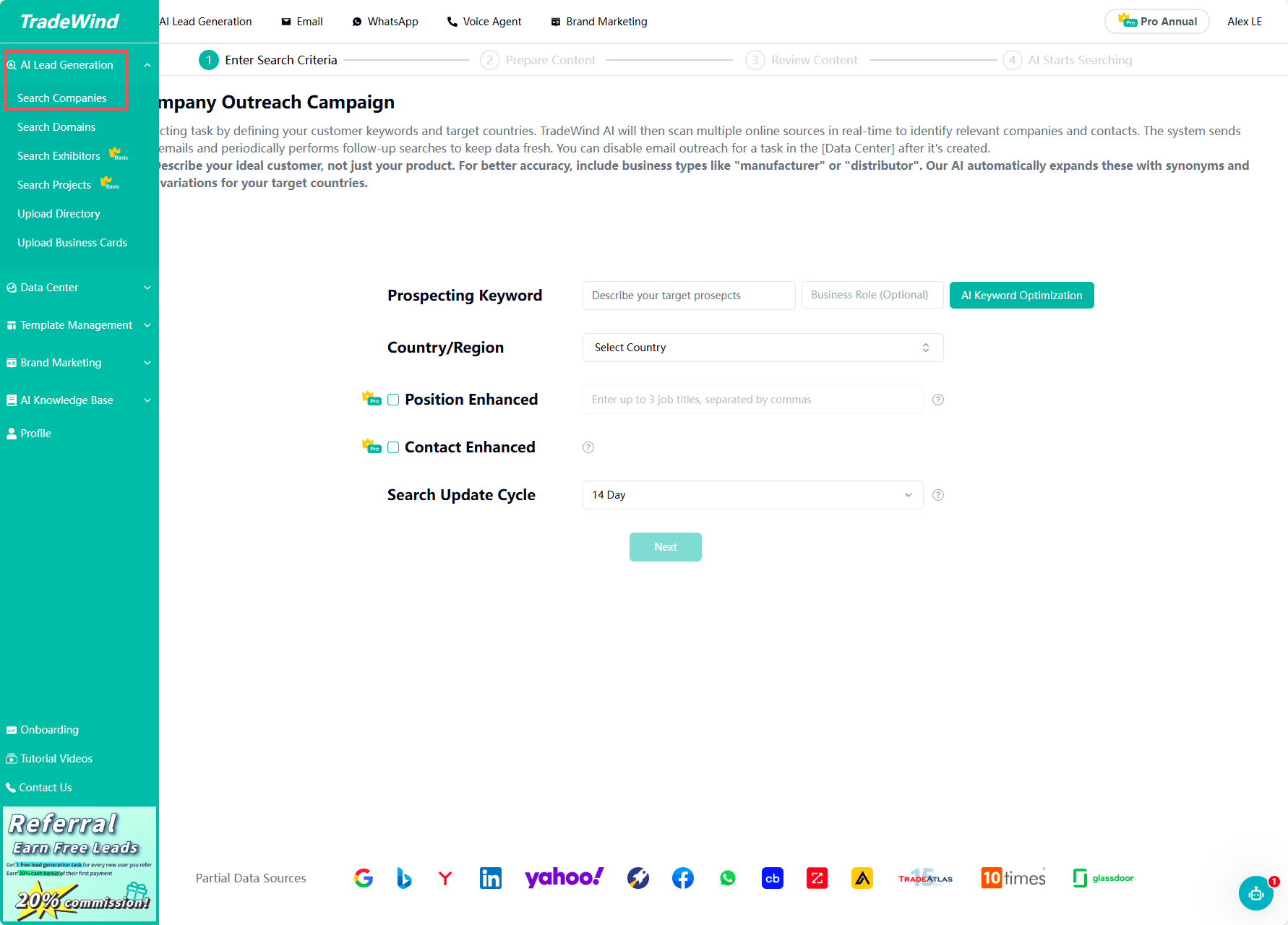
In the left navigation bar, find and click “Search - Search Companies.”
Select Keywords, Region, and Update Cycle
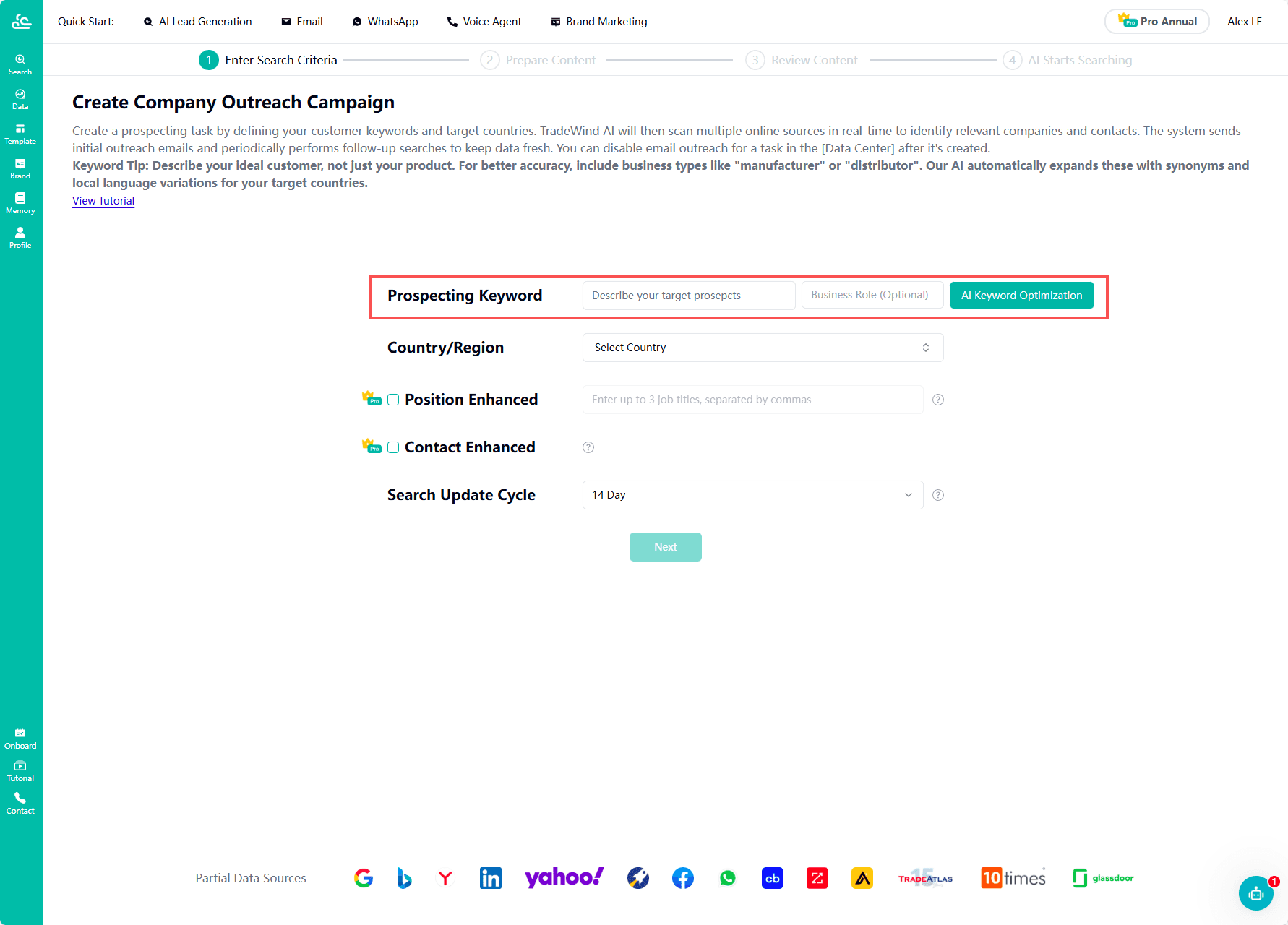
On the “Search Companies” page, enter the customer keywords you wish to search for in Chinese or English. Then, select the Business Role (Distributor/Importer, Manufacturer, End Customer/Brand, Service Provider/Contractors).
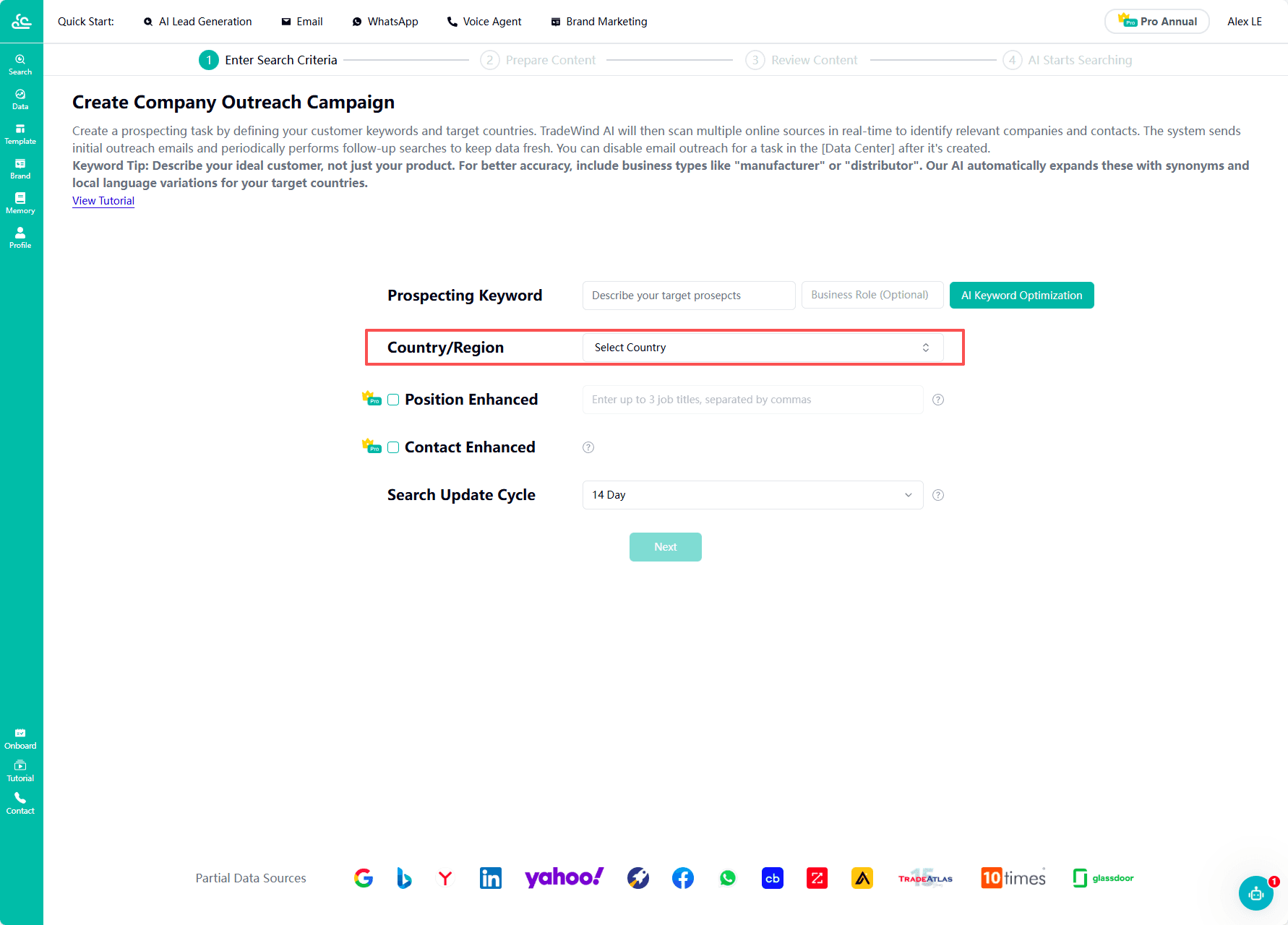
In the “Country/Region Selection” box, specify the search scope. You can enter the pinyin or English name of a country, and the system will automatically match the corresponding country or region.
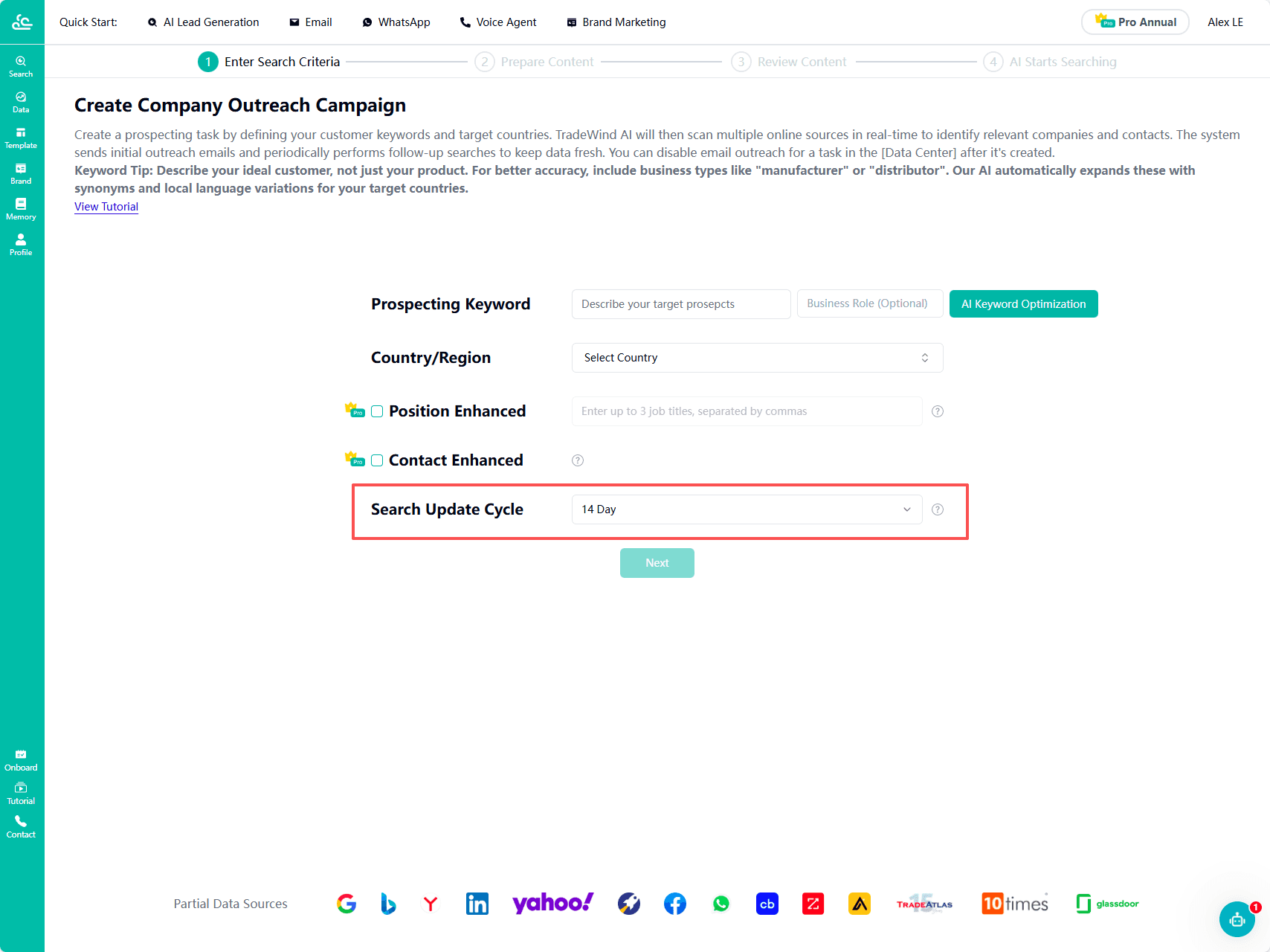
To ensure you receive the latest company information, select an appropriate cycle in the “Search Update Cycle” as the search frequency. TradeWind will automatically re-search and continuously supplement and update customer information based on this cycle.
Enter the Keyword Confirmation and Selection Interface
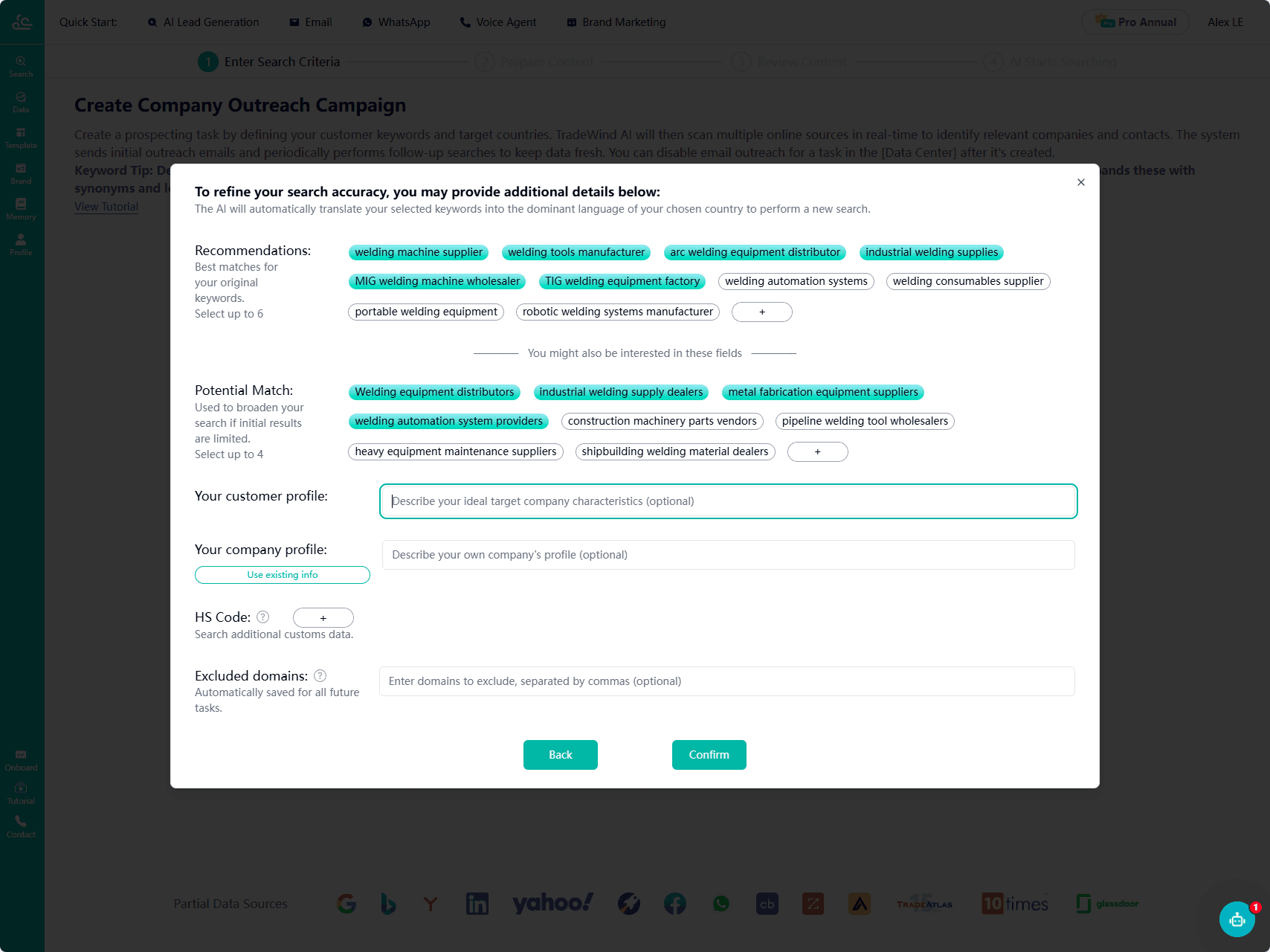
After clicking “Next,” the system will proceed to the keyword confirmation interface. The AI will intelligently expand the keywords you entered. It first generates synonyms based on the original terms. If a keyword has a low match rate with companies in the target region, a secondary expansion will be performed. You can customize these expanded keywords according to your needs, selecting up to four in total. After finalizing the keywords, the system provides additional options such as filling in customer profiles, entering background information, inputting HS Codes (to expand customs data searches), and setting excluded company domains (which are automatically saved to your account, eliminating the need for repeated entry). Notably, all selected keywords will be automatically translated by the AI into the official language of the target country, ensuring accuracy and localization in subsequent searches.
Enter the Cold Email Template Selection Interface
After confirming the above information is correct, click the “Next” button to enter the “Cold Email Template” interface.
You can use the official email domain provided by TradeWind free of charge. If you prefer to use your own email domain, simply click “Create New Domain,” follow the prompts to add and verify it before use.
The default email displayed in the “Reply-to Email” box is the one you registered with, which can be modified in your personal center. Select the template to be used for this task from the “Email Template List.”
In addition to the official templates, you can choose your own templates that have been created and approved. If you have many templates, use the search box to quickly find the desired one.
On the right side of the list, the email’s subject, body, attachments, sender information, etc., will be displayed in real time based on your selection. The sender address will default to a combination of your name and the chosen email domain.
After selecting the template, choose the email send time. If you want the email to be sent immediately after the search is completed...
Enter the Follow-up Email Template Interface
Then click “Next” to enter the “Follow-up Email Template” interface. On this page, you will again see the email domain and reply-to email settings, which will remain consistent with those in the cold email template.
Similarly, you can select the follow-up email template from the list. Based on business needs, you can set the time interval for sending follow-up emails. The system will automatically send your follow-up email in the next cycle after the cold email is sent.
If you do not currently need to send follow-up emails, you can click “Skip” to proceed with creating only the cold email task.
Enter the Task Preview Interface
Finally, click the “Next” button to enter the “Task Preview Interface.” Here, you can review all the information you previously entered and selected to ensure the email task proceeds as expected.
After verifying everything, click the “Confirm” button. Your Search Companies task is now created. You can also click the “Search Again” button to create a new task or return to the task list for review.